
Change one word on a finished image with GPT Image 2.5—and keep everything else
To fix a price, date or name on a finished image, use a GPT Image 2.5 edit model: state the one change with both strings in quotes, then list what must stay. The whole frame is redrawn, so the rest looks the same but is not pixel-identical. From 49 credits an edit.
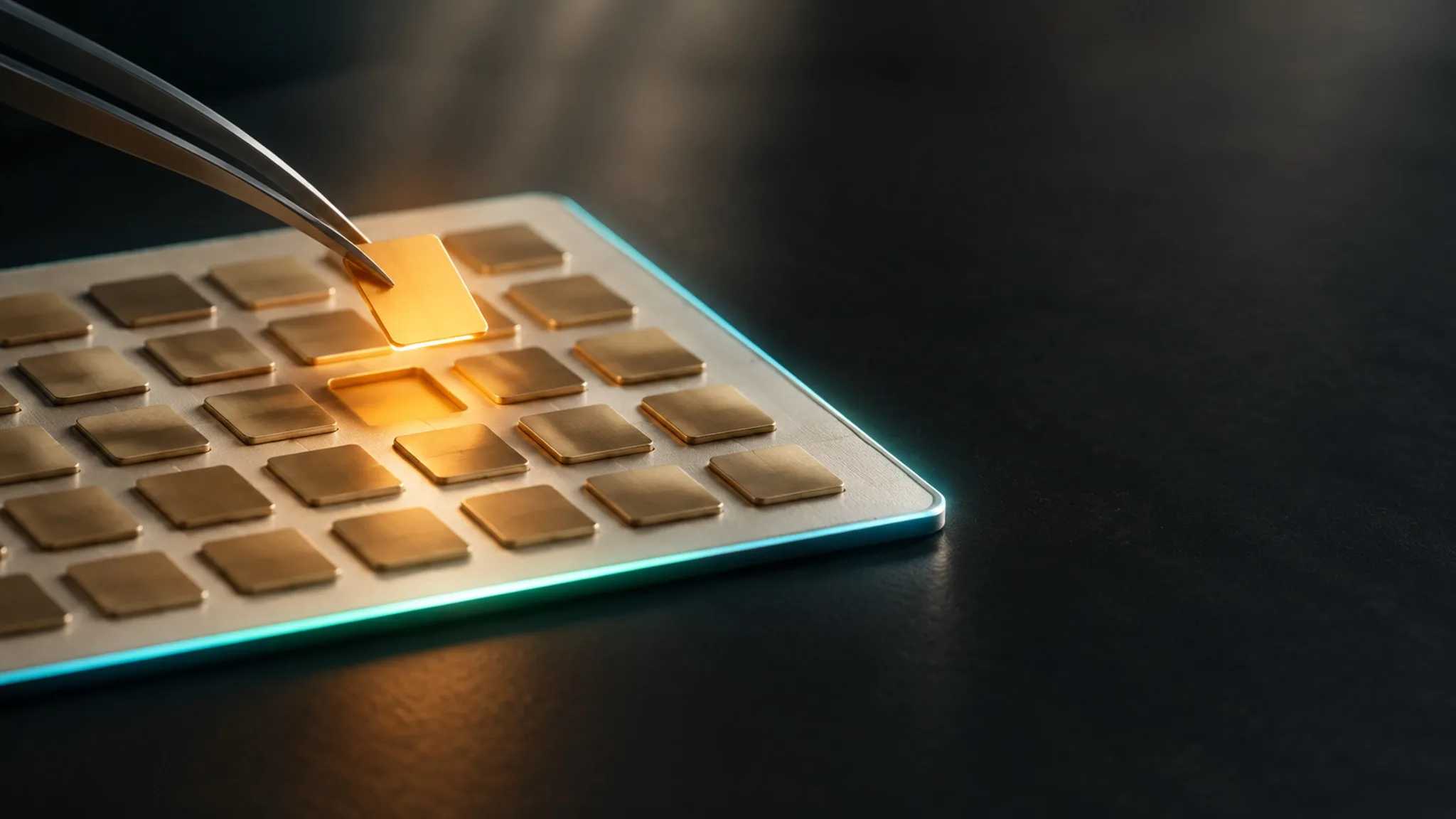
A poster with the wrong date, a menu with last month's price, a label with a misspelled name: regenerating the image to fix one string usually gets you a different image. GPT Image 2.5's edit models—Sunburst edit and Flare edit—can change just that string, and on LUVI an edit starts at 49 credits. In LUVI's own tests on October 12, 2026, changing one price on a chalkboard menu was charged 35 credits. This guide is the recipe: how to word the change, what "everything else stays" really means, and how far you can chain it.
How do I write a single-value edit?
A single-value edit on GPT Image 2.5 has two parts: the change first, stated exactly with both the old and the new string in quotes, and then a keep clause that names what must not move. LUVI's GPT Image 2.5 guide gives this as the shape for every edit, and this is the prompt from our menu test:
Change only the price on the "Türk kahvesi" line from "60 ₺" to "75 ₺". Keep everything else exactly the same: every other word and price, the chalk lettering style, the icons, the frame, the brick wall and the lighting.
Three habits make it work:
- Anchor the change to a location in the image. "On the "Türk kahvesi" line" tells the model which of four prices to touch.
- Quote the old and the new string exactly, including currency signs and accented letters. The ₺ sign and the Turkish ü came back correct in our tests.
- Make the keep clause specific to this image. "Everything else" is the headline; the list after the colon is what the model actually checks against.
A date or a name works the same way:
Image 1 is the event poster to keep. Change only the date line from "SAT 14 NOV" to "SAT 21 NOV". Keep everything else exactly the same: the headline, the venue line, the typeface and its size, the colors, the photo and the layout.
For an unusual name, OpenAI's prompting guide adds one more step: spell it letter by letter when needed, then check the spelling in the result.
Does the rest of the image really stay the same?
The rest of the image stays visually the same, but not pixel-identical, because a GPT Image 2.5 edit redraws the whole frame. We compared the edited menu with the original pixel by pixel: the average difference across the frame was 5 out of 255 brightness levels, and only 1.1% of pixels changed by more than 40 levels. To the eye, every other line, icon and the frame were untouched.
OpenAI says the same about its own edits and gives the fix: "If a region must remain pixel-identical, composite the approved edit into the original image instead of relying on prompting alone." For print files and brand assets, that means taking the corrected area from the edit and placing it over the original in an image editor.
Can I chain several word changes?
You can chain word changes, one per edit, and that is what GPT Image 2.5 is built for. OpenAI's advice is to "pass the previous output as the next edit input, request one change, and repeat the details to preserve", and LUVI's guide adopted it on October 12, 2026. This reverses the habit from GPT Image 2, where LUVI's guide asks for every change in a single prompt—if you learned to batch, unlearn it here.
In our test, a second edit changed another price on the already-edited menu, from "85 ₺" to "95 ₺". The first correction survived, every other line held, and the drift in untouched areas grew only slightly: from 1.1% to 1.6% of pixels changed by more than 40 levels. Two chained edits were safe; a long chain will drift further, so restate the keep clause every turn and name any element you would mind losing.
What if I need every word changed, such as a translation?
A full text swap, such as a translation, is still one change: all the text, with the design held. OpenAI's prompting guide demonstrates it on an infographic with a one-line edit—"Translate the text in the infographic to Spanish. Do not change any other aspect of the image."—and then tells you to check the translation and look for words left in the original language. Give the model the exact target copy in quotes when you have it, rather than letting it translate.
How do I keep a face the same while changing the scene?
To keep a face the same, name the face, the features and the identity explicitly in the keep clause; GPT Image 2.5 does not assume them. OpenAI's own wording is the strongest version: "Do not change her face, facial features, skin tone, body shape, pose, or identity in any way." In LUVI's test, a winter photo of two friends on a ferry was turned into a summer afternoon, and both faces, the hair and the expressions held:
Change the season to a bright summer afternoon: clear sky, light summer clothes, glasses of tea in their hands. Keep both people's faces, facial features, hair and identity exactly the same, and keep the framing and the skyline behind them.
That is one test on one pair of faces, so treat it as encouraging, not as a guarantee for every identity edit.
Which model and settings should I use for the edit?
Use Sunburst edit when precision matters most—OpenAI positions it for "workflows where editing precision matters most"—and Flare edit when you are iterating quickly; both take the same prompt and the same settings.
- Size: match the original's shape. Through Claude or ChatGPT with the LUVI connector, an edit sent without a size takes the shape of the first input image automatically.
- Quality: medium was enough for the menu text in our tests. OpenAI suggests comparing medium and high for small text or dense information.
- Transparent images: keep
backgroundontransparentand say "Keep the fully transparent background." in every turn. - Cost: the estimate shown before you run is a ceiling. A single-image edit at 1024×1024 and medium quoted up to 74 credits with a large source image on October 20, 2026; the one-input edits in our October 12 tests were charged 35 to 37.
How we checked
- Models: GPT Image 2.5 Sunburst edit and GPT Image 2.5 Flare edit.
- What was read: both models' parameter contracts and LUVI's credit quotes on October 20, 2026; LUVI's GPT Image 2.5 prompting guide; OpenAI's image prompting guide.
- Test runs cited: LUVI's own manual tests on October 12, 2026—two chained single-price edits on a chalkboard menu, measured pixel by pixel against the original, and one scene edit with two faces—with their settled charges.
- Results: No outputs were generated for this post, so it makes no claim about output quality beyond those earlier test runs.
- Drawbacks: each test was a single run on one image. Small text, long names and busy layouts may need more than one attempt.
In LUVI
Open the image in your Library, send it to a GPT Image 2.5 edit model, and write the change and the keep clause in that order. The feather button next to the prompt applies LUVI's GPT Image 2.5 guide for free, and the help center shows how to attach an image as a reference.
New accounts start with 100 credits, and verifying a phone and a card adds up to 1,500 more. You can create a LUVI account and fix the one word that is wrong.
Sources
- Image prompting guide — OpenAI, developer documentation. Accessed October 20, 2026.
- GPT Image 2.5 Sunburst model page — OpenAI, API documentation. Accessed October 20, 2026.
More from Guides
- How to prompt MiniMax H3: write a three-field document, not a captionMiniMax H3 reads a prompt as three named fields and fills any sound field you leave out with sound you didn't ask for. The document shape, the camera sentence, the dialogue tag and the defaults that catch people out, from 2,080 credits for eight seconds.
- Can Claude generate images and videos? Not on its own—here is how to do it with a connectorClaude doesn't generate photos, illustrations or video footage itself, Anthropic's help center says. Add LUVI Creator as a custom connector and Claude can quote and run 200+ image, video, audio and 3D models on your LUVI credits, with the price shown before each run.
- How to prompt Gemini Omni 1.1 Flash: ask for one take, and never quote the dialogueGemini Omni 1.1 Flash cuts a clip into several shots unless your first sentence asks for one continuous take, and it can print quoted speech on screen. The prompt shape LUVI's guide enforces in all five modes, from 1,980 credits for a ten-second clip at 720p.