
How to split an image into layers with Seedream 5.0: what comes back and how to choose the elements
Seedream 5.0 Pro and Flash turn one image into a base image plus up to 16 transparent PNG layers. Leave the prompt empty to separate every main element, or name the ones you want, even by box coordinates. The estimate shows up to 612 credits on Flash; the charge follows the layers returned.
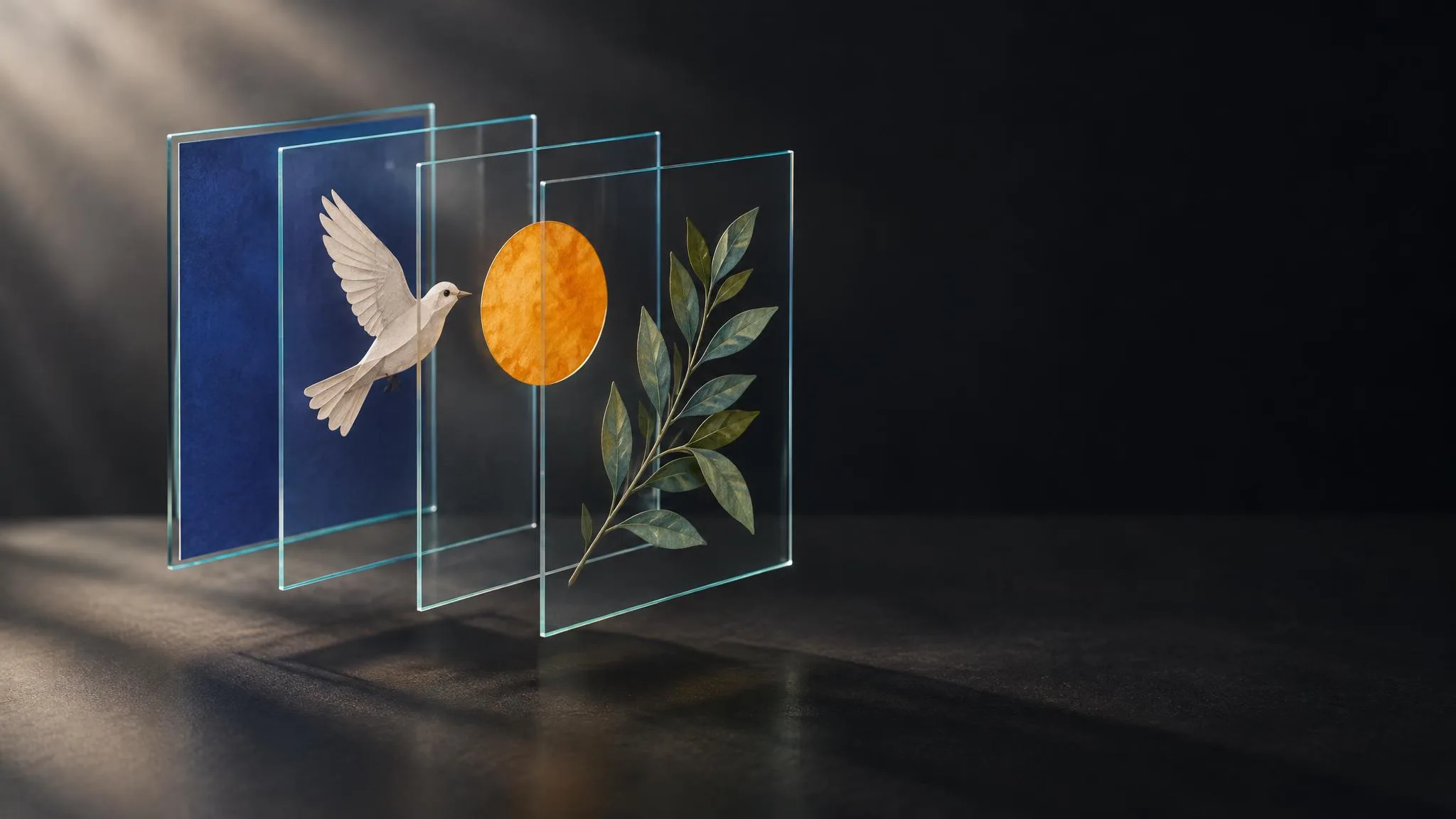
A flat image becomes an editable stack with ByteDance's Seedream 5.0 layer models. On LUVI they run as Seedream v5.0 Pro Layer Decomposition and Seedream v5.0 Flash Layer Decomposition: one image goes in, and a base image plus up to 16 transparent layers come out. As of October 20, 2026, the estimate shows up to 612 credits on Flash at any size, and up to 648 or 1,296 credits on Pro depending on the size tier. You pay for the layers that actually come back, never more than that estimate. This guide covers what you get, how to point the model at specific elements, and what LUVI does with the stack afterwards.
What does a layer decomposition give you back?
A layer decomposition returns one base image and up to 16 layers, one element per layer. The base image is your picture with every separated element taken out and the area behind it filled in, so it works as a clean background on its own. ByteDance's launch post for Seedream 5.0 Pro describes the same thing on a poster: the model "can separate a complete poster into more than 10 independent layers", and the background areas the subject covered "are also seamlessly inpainted".
- Base image. Same aspect ratio as your input. Its format follows the
output_formatsetting, JPEG or PNG. - Layers. Always transparent PNG, whatever
output_formatsays. Each one is cropped to its own element and keeps that element's proportions. - Names and positions. Every layer comes with a name, a short description, a stacking order and a box that says where it sits on the base image.
One detail matters if you rebuild the stack in another editor: a layer file is usually larger than the box it belongs in. The model renders each layer close to the chosen resolution tier, so a small element can come back a few times larger than its spot in the picture. Scale each layer down into its box. LUVI's own viewer and its downloads do that for you.
Do you need a prompt?
No. The prompt is optional on both models, and an empty prompt tells the model to find every main element and give each its own layer. That is the right start for a poster, a product shot or a busy scene you want to take apart.
Write a prompt when you only want some of the elements. There are two ways to say which:
- By name. "Separate the bottle, the price tag and the headline." ByteDance's API reference says the model "identifies and decomposes specified elements based on the prompt intent".
- By position. Put a box around the element with
<bbox>x1 y1 x2 y2</bbox>: left, top, right and bottom, on a 0–1000 grid laid over your image, where0 0is the top-left corner. This example is shortened from the one in ByteDance's reference, which names text regions and a parrot:
Perform precise layer separation on the image. The text regions to separate are at
<bbox>180 64 812 198</bbox>and<bbox>178 714 826 810</bbox>; the parrot is at<bbox>347 305 642 997</bbox>.
Two limits from the same reference are worth knowing before you ask for a lot. If the prompt asks for more layers than the model can return, "some layer information may be lost". And if any single layer fails, the whole request fails; there is no partial result. On LUVI a failed generation costs nothing.
LUVI's prompting guide for the Seedream family deliberately leaves these two models alone. That guide rewrites captions toward image-generation language, which would scramble box tags, so on the layer models your prompt goes to the model exactly as you typed it.
Which settings and images work?
Two settings shape the result, and the input image has hard limits.
size:auto,1K,1.5Kor2K.auto(the default) follows your input image within the 1K–2K range. Decomposition works at up to 2K, so a larger source comes back smaller than it went in, and LUVI tells you before you pay.output_format:jpegorpng, for the base image only.- Input image: exactly one. Its total pixel count (width times height) must sit between 512×512 and 6000×6000, it can't be longer than 16:1 in either direction, and the file must be 30 MB or less. LUVI checks this before anything is sent: an image outside the limits is turned away with the reason, and nothing is charged.
Pro or Flash, and what does it cost?
The two models differ in price and speed. LUVI labels Pro "Best separation" and Flash "Faster and cheaper". Prices as of October 20, 2026:
- Seedream 5.0 Flash: the estimate shows up to 612 credits, at every size.
- Seedream 5.0 Pro: up to 648 credits at
1Kor1.5K, and up to 1,296 credits at2Korauto.
The word "up to" is the important part. Nobody knows in advance how many elements the model will find, so the estimate covers the largest possible result: the base image plus 16 layers. The final charge follows the number of files that actually come back, and it never goes above the estimate. A picture that splits into four layers costs a fraction of one that splits into sixteen. The help center explains why a charge can differ from the estimate for every model.
That is also why the model pages show no "from" price for these two. Printing the ceiling as a starting price would overstate a typical job several times over, so each page says the price follows the number of layers returned, and the workspace shows the live "up to" figure before you run.
How we checked
- Models: Seedream v5.0 Pro Layer Decomposition and Seedream v5.0 Flash Layer Decomposition.
- What was read, October 20, 2026: both models' live parameter contracts and their public model pages; live credit estimates for every
sizevalue on both models, confirmed against LUVI's own pricing code; the input checks, the layer viewer and the download code in LUVI's production source; ByteDance's API reference and the Seedream 5.0 Pro launch post. - Results: Flash up to 612 credits at every size; Pro up to 648 credits at
1Kand1.5K, up to 1,296 at2Kandauto. Both checks gave the same numbers. - Drawbacks: No outputs were generated for this post, so it makes no claim about output quality, including how cleanly Pro and Flash separate any particular kind of image.
In LUVI
There are two ways in. The quick one is the Decompose button: it sits in the Workspace toolbar while an image is on screen, and in the Layers tab of an image in your Library. It asks you to pick Pro or Flash, shows each one's "up to" price, and runs with an empty prompt at auto size with a PNG base, so the base matches its layers. If that image already has a layer package, the button opens it instead of charging you again.
The other way is to choose one of the two layer models in the Workspace model list. Use it when you want a prompt or box coordinates, a fixed size tier, or a JPEG base.
Either way, the result opens as a stack with a Layers panel beside it:
- The eye icon hides or shows a layer. Drag a layer to move it; the arrow keys nudge it by 1 px, or 10 px with Shift, and Esc deselects. These moves stay on screen; the files never change. Reset all puts everything back.
- Download layer saves one layer as it came. Download visible saves what is on screen as one PNG at the base image's resolution; hide the base and the background turns transparent.
- Download all layers (zip) saves every file plus a
layers.jsonwith each layer's name and box, so the stack can be rebuilt in another editor. - Export to library saves a single layer as its own transparent PNG, in a project or in the library root.
The Splitting an image into layers tutorial walks through the same steps in two minutes. From Claude or ChatGPT, the LUVI connector runs both models too, and its get_generation_status tool reports which file is the base image and which element each layer holds, with its box. If you also generate images with Seedream, note that the generation models set their shape with exact pixel sizes rather than tiers; Seedream 5.0 Pro's sizes are listed in a separate guide.
New to LUVI? Create an account and try Flash on a poster you already have.
Sources
- Image generation API reference — BytePlus ModelArk, documentation, updated October 20, 2026. Accessed October 20, 2026.
- Beyond generation, it understands design: introducing Seedream 5.0 Pro — ByteDance Seed, blog, July 8, 2026. Accessed October 20, 2026.
More from Guides
- How to prompt Nano Banana 2.1: prose in, settings out, and no transparent backgroundNano Banana 2.1 reads plain prose and nothing else: describe what should be in the frame, never what shouldn't, and set size and shape in the controls. On LUVI it starts at 80 credits for text-to-image, 83 for an edit and 400 for its video-to-still mode, all at 1k.
- Can you make videos in ChatGPT? Connect Veo, Kling and Seedance through LUVIYes, if your ChatGPT plan lets you add a custom MCP server: add LUVI under Plugins, sign in to your LUVI account, and ChatGPT can quote and run Veo 3.1, Kling, Seedance 2.5 and Nano Banana on your LUVI credits. Name LUVI and the model in the message, and ask for the quote first.
- Websites to make AI images and videos: which kind of site fits which jobAI image and video sites come in three kinds: a lab's own app (Midjourney, Google Flow, Kling, Runway), a design suite with AI built in (Canva, Adobe Firefly), and a multi-model platform (Krea, Higgsfield, OpenArt, LUVI Creator). Pick the kind by your job, then the model by the shot.